Telstra Passkey Setup with Cable Recovery iPads

Jun 19, 2026
Step 1 – Prerequisites
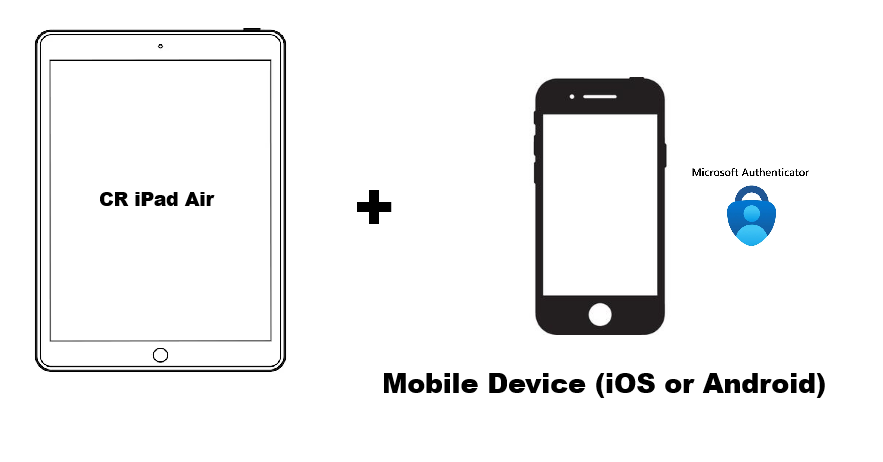
This method will only work on a Telstra MDM-registered iPad (e.g., Copper Recovery iPads).
The Microsoft Authenticator app can be installed on any work or personal mobile device.
Before you begin:
- Install the Microsoft Authenticator app on your mobile device if it is not already installed. Please note that non-Microsoft authentication apps are not supported and will not work for Passkey registration.
- Ensure Bluetooth is enabled on both the Telstra MDM iPad and the mobile device where Microsoft Authenticator is installed.
- Keep both devices in close proximity throughout the setup process.
Step 2 - On your Mobile Device
For iOS Mobile Device Users:
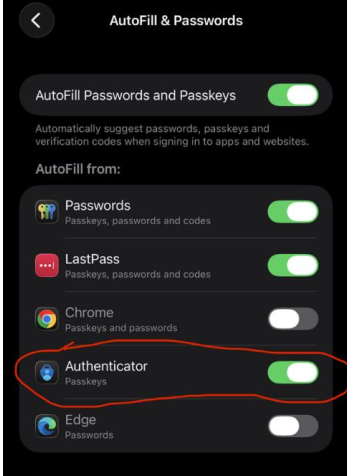
- Set Authenticator as your autofill option: Settings > General > Autofill & passwords
For Android Mobile Device Users:
Note: the navigation may vary according to the mobile device
Samsung:
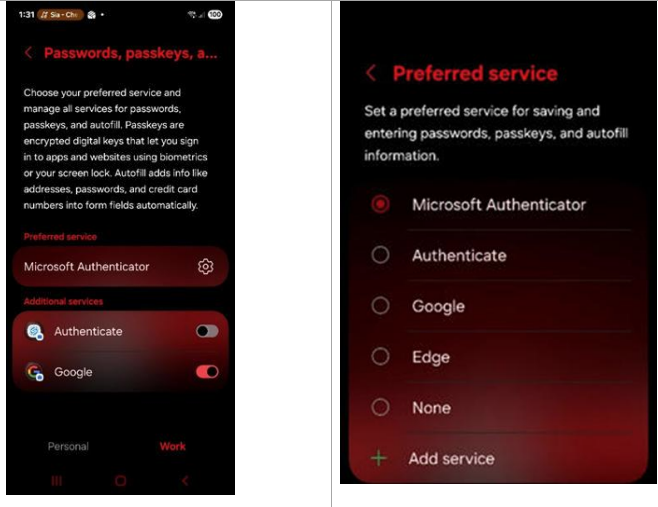
- Go to Settings > Security and privacy > More security settings > Password, passkeys, and autofill > Select preferred service as "Microsoft Authenticator"
Pixel:
- Go to Settings > Passwords, Passkeys and accounts > Select "Work" profile > Additional Services (Microsoft Authenticator) = Turn ON
Step 3 – Set Up Microsoft Authenticator
- Install Microsoft Edge Browser from the App Store on the iPad.
- Open Edge and navigate to:
mysignins.microsoft.com/security-info
- If you can see Microsoft Authenticator registered as a password less sign-in method, go to Step 4 -Create a passkey

- Tap Add sign-in method.
- Select Microsoft Authenticator (if it has not already been configured).
- Follow the prompts to set up Microsoft Authenticator for your Telstra account.
Step 4 – Create a Passkey
- In Microsoft Edge, navigate to:
mysignins.microsoft.com/security-info
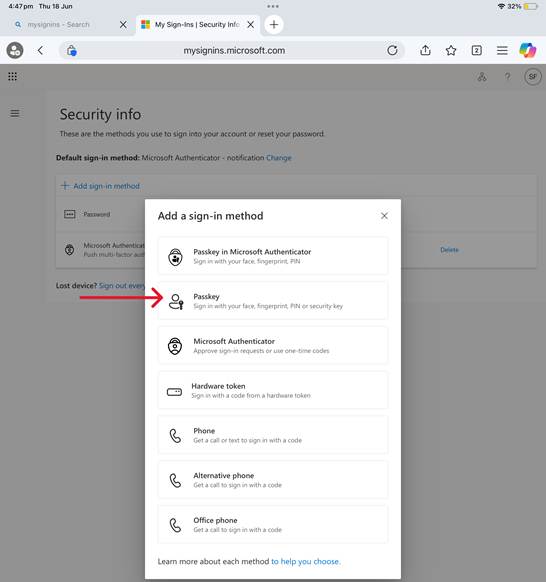
- Tap Add sign-in method and select Passkey.
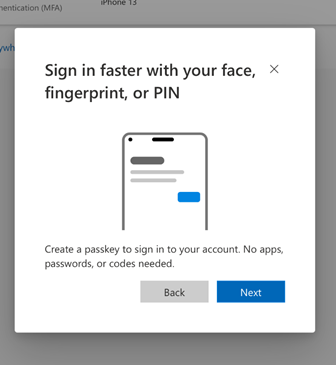
- Tap Next.
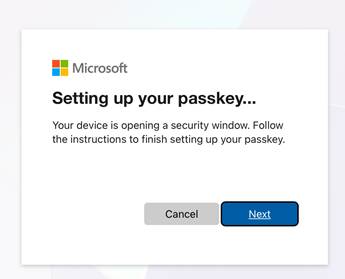
- Select Other options.
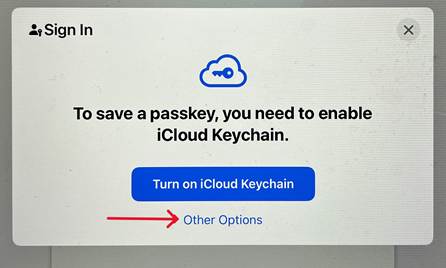
- Choose iPhone, iPad, or Android device and tap Continue.
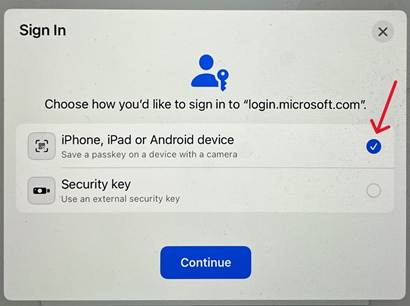
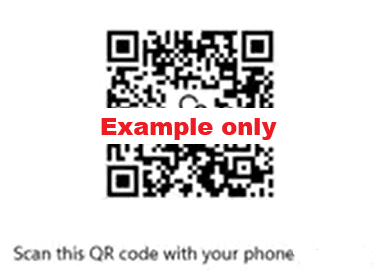
- A QR code will be displayed on the iPad screen.
Step 5 – Register the Passkey
- Open the Microsoft Authenticator app on your phone.
- This must be the same device used in Step 3 to set up Microsoft Authenticator for your Telstra account.
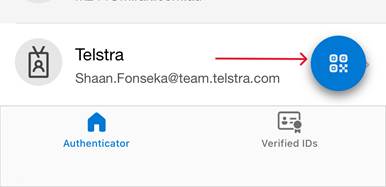
- This must be the same device used in Step 3 to set up Microsoft Authenticator for your Telstra account.
- Scan the QR code displayed on the iPad.
- Tap Continue.
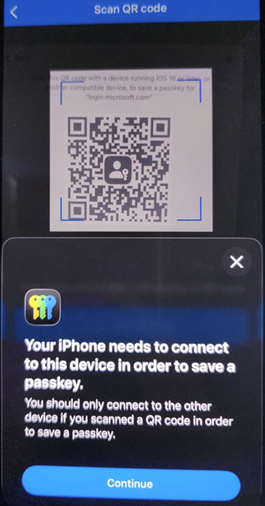
- Ensure Save in Authenticator is selected.
- Tap Add Passkey.
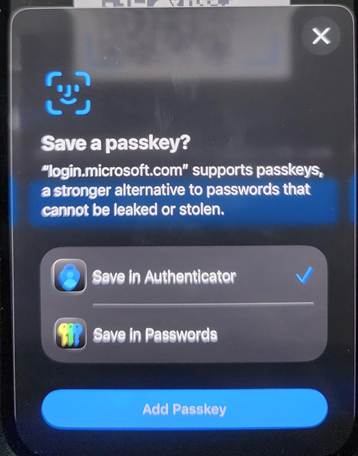
- Return to the iPad and continue through the remaining prompts.
- Enter a name for the Passkey and tap Next.
- Tap Done to complete the setup.
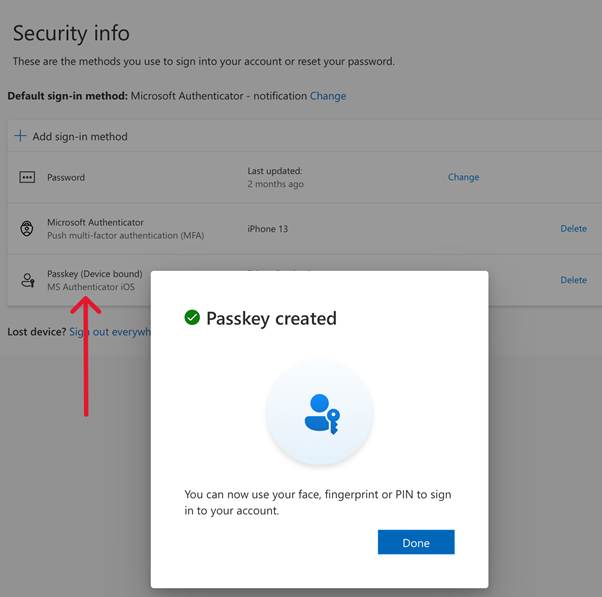
Once completed, the Passkey will appear in your Telstra account under the Security Info page.