


This guide explains how to register Microsoft Authenticator for your Telstra Account01 using a Telstra MDM-registered iOS device.
Devices Required
- Telstra Copper Recovery iPad (MDM-registered)
- Mobile phone (iPhone or Android)
Before You Begin
Install the Microsoft Authenticator app on your mobile phone from the App Store (iPhone) or Google Play Store (Android).
If Microsoft Authenticator is already installed on your phone, you do not need to reinstall it.
Note: Only the Microsoft Authenticator app is supported for this setup. Other authentication apps, such as Google Authenticator, are not compatible.
On the iPad
- Install Google Chrome from the App Store.
- Open Chrome and navigate to:
- Sign in using your Telstra Account01 credentials:
- Email: [email protected]
- Password: Your Telstra Account01 password
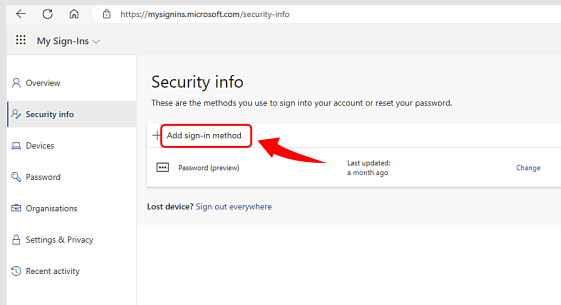
Click on Add sign-in method
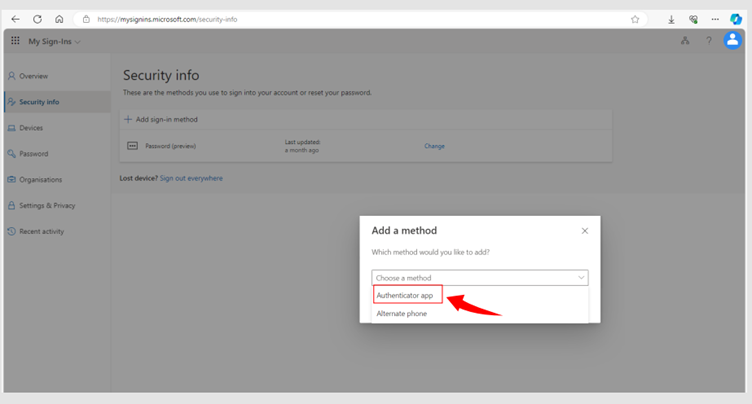
Select Authenticator app
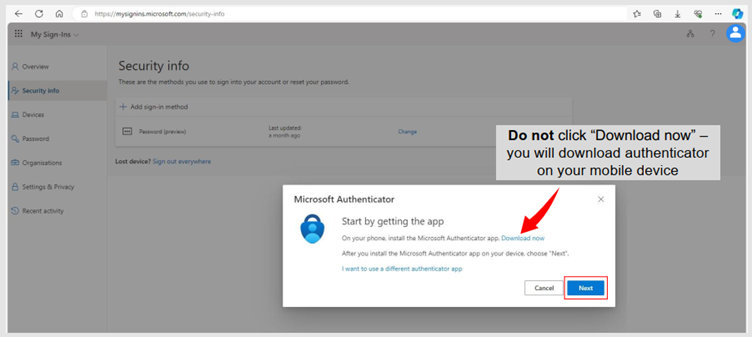
Click Next on screen to continue
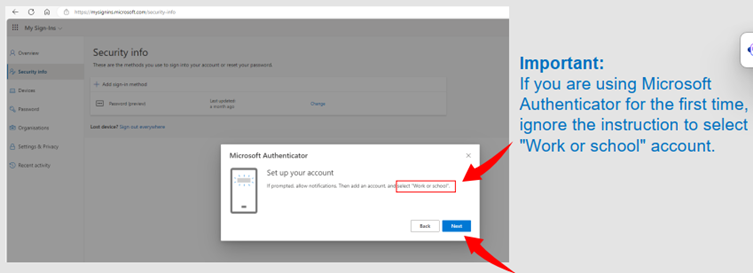
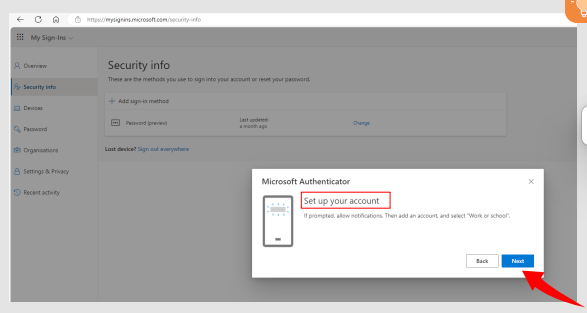
Click Next on the Set up your account screen on your iPad.
On your mobile phone:
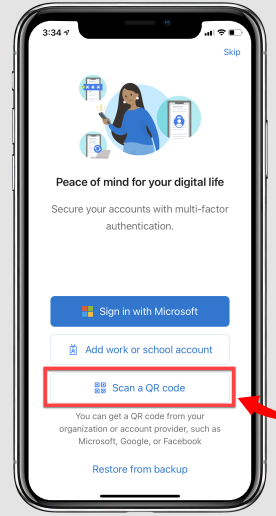
A: If you are Opening the Authenticator app for the first time, select Scan a QR code
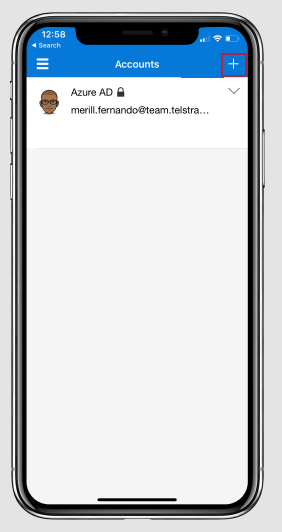
B: if Microsoft Authenticator app is already installed on your mobile device tap on “+” as below:
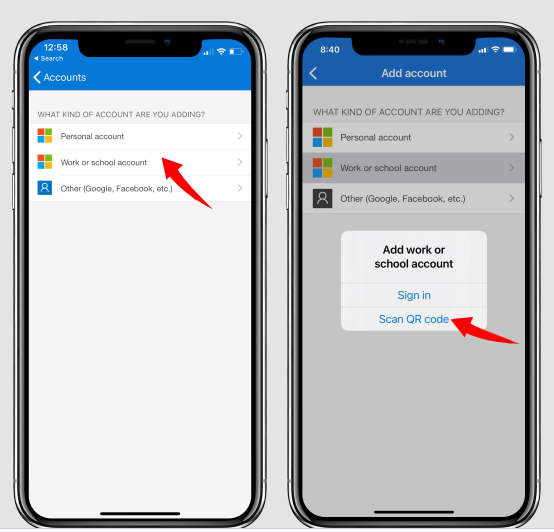
ON PHONE: Select Work or school account
ON PHONE: Tap Scan QR Code
ON iPad: Then click Next on the Set up your account page
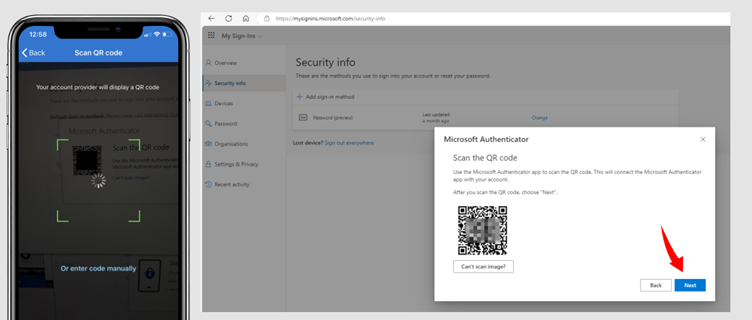
Scan the QR code on iPad screen using your mobile device from the Microsoft Authenticator app.
Click Next to continue
ON PHONE: Add the ‘one time passcode number’ that appears on the iPad screen to your mobile phone
ON iPad: Wait for the PC page to show ‘Notification approved’

ON iPad: Click Next to finish setting up Microsoft Authenticator

