1. Set Up Multi-Factor Authentication (MFA)
1.1 Request an MFA Exception Window from Telstra
Before setting up MFA, you must request a temporary MFA exception window from Telstra.
- Email CM_A&[email protected] and copy ICT Support ([email protected]) when you are ready to proceed.
- Include your Telstra ID and Telstra email address in your request.
- Wait for approval and confirmation from CM_A&[email protected] that you may proceed with the MFA setup.
- Once you receive the approval email, complete the MFA setup within the 1-hour exception window provided.
1.2 Register Microsoft Authenticator (MFA setup)
- Download and install the Microsoft Authenticator app from the App Store (iPhone) or Google Play Store (Android) on your mobile device.
- On a laptop or desktop computer, open the following website in a web browser:
- Sign in using your Telstra email address and password.
- Click Add sign-in method.
- Select Microsoft Authenticator.
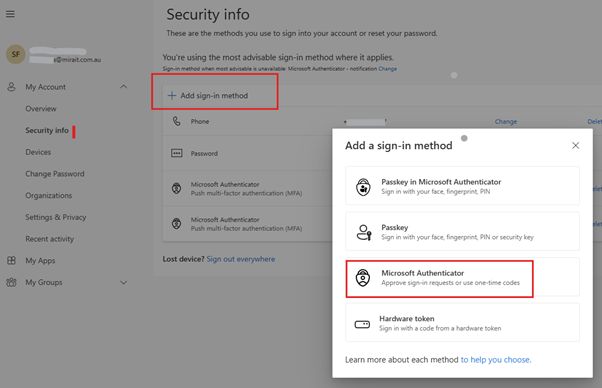
- Click Next. A QR code will be displayed.
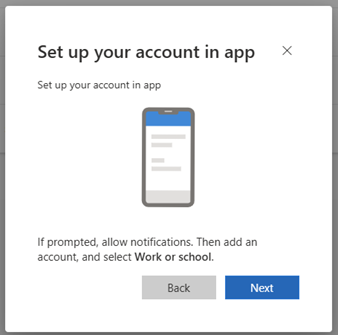
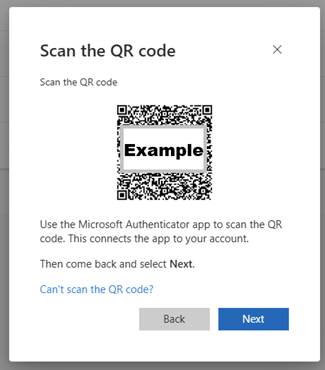
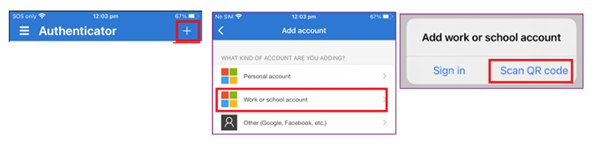
From the Microsoft Authenticator app on your mobile device, click on "+" icon on the top right to add an account
Select "Work or School Account" and "Scan QR code". If this is the first time using the Microsoft Authenticator app, it might prompt you to allow access to camera to scan the QR code
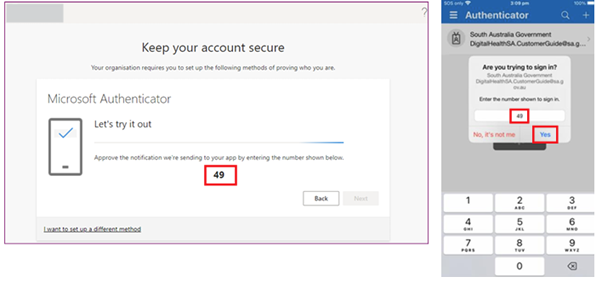
To complete MFA setup, it will prompt you to confirm MFA. Validate the MFA prompt to successfully configure
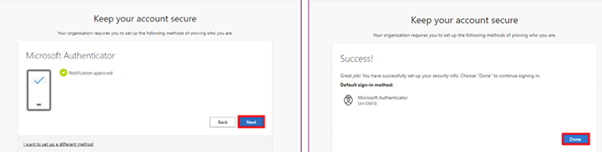
The Authentication prompt should now be approved, linking your iPhone device to your Microsoft 365 account. Click ‘Next’, then click ‘Done’.
Add Your Phone Number as an Alternate Sign-In Method
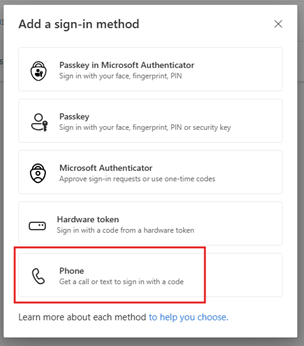
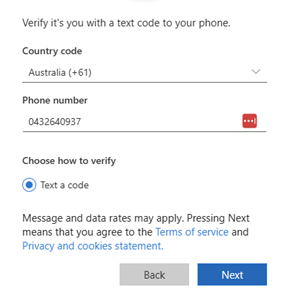
It is highly recommended that you add your mobile phone number as an alternate sign-in method for your Telstra account. This can save you time and help you avoid contacting Telstra IT to have your authentication methods reset.
Click on Add sign in method:
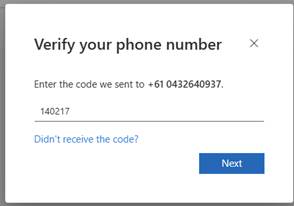
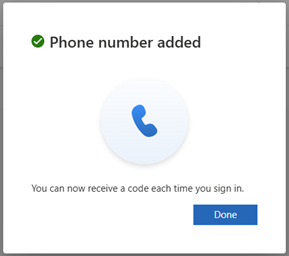
Select Phone and follow the prompts.
2. Loging into Windows AVD:
Install Windows App from Microsoft store or App store (Mac OS)
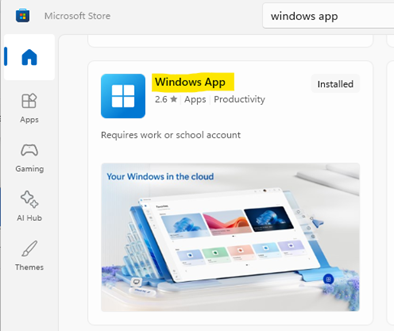
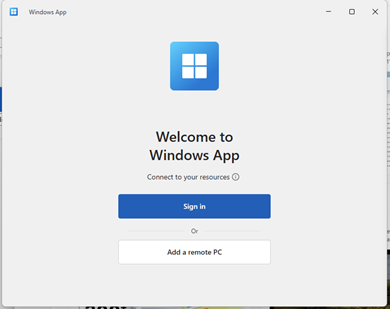
Launch the application
Authenticate using your Telstra credentials ([email protected])
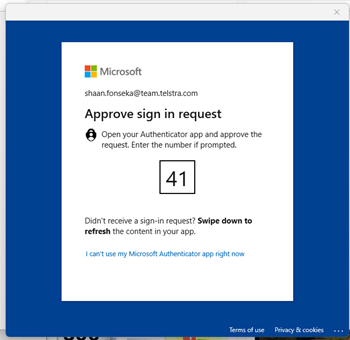
When prompted, authorise the MFA request
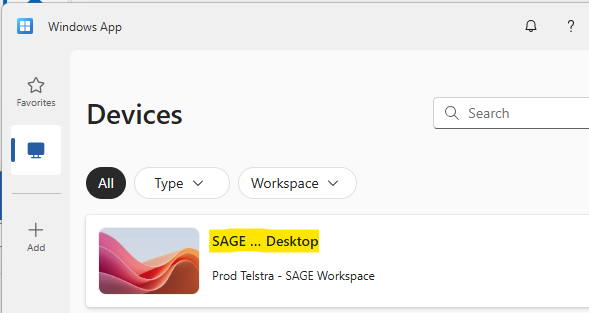
Click on Devices tab
Click on SAGE Virtual Desktop
Click OK on Business use message.
After setup, Mandatory Induction Training must be completed: My Learning - Workday
(https://wd3.myworkday.com/telstra/learning/mylearning)
(Important: You must access the Telstra Workday training page using Microsoft Edge within your SAGE Virtual Desktop environment. It will not work if you access it using a web browser on your local laptop or desktop.)
If the SAGE Virtual Desktop is running in full-screen mode, you can minimize or close the session using the control bar that appears at the top of the screen.
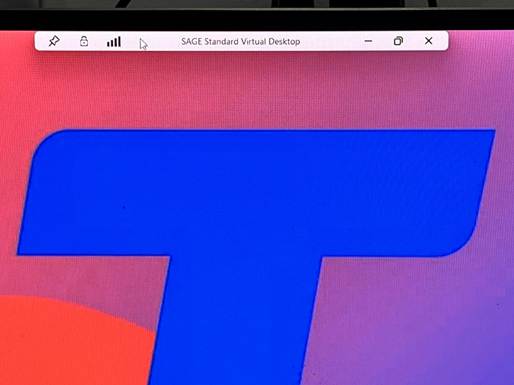
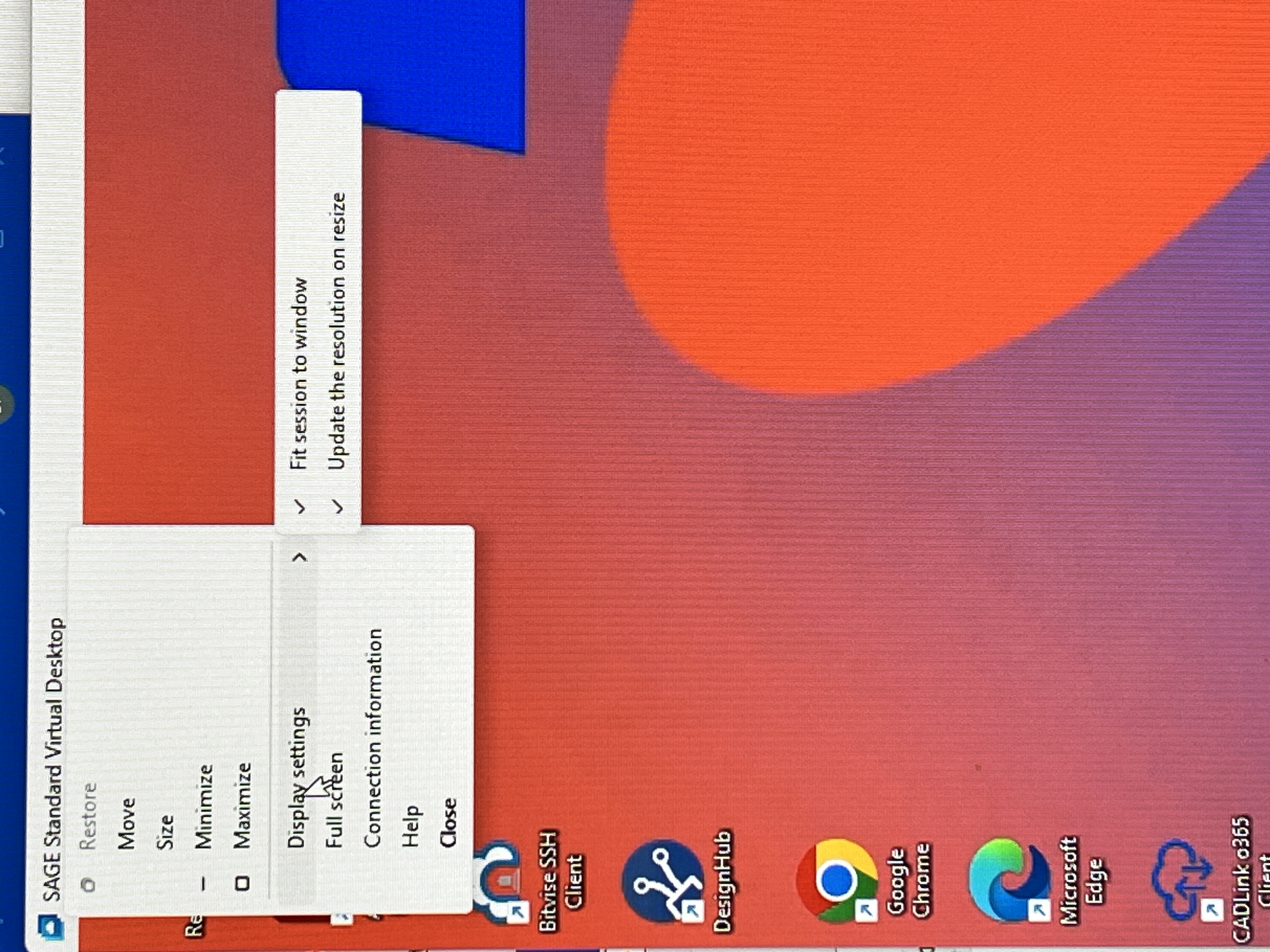
For the best experience, it is highly recommended that you enable the following display options:
- Right-click the SAGE Virtual Desktop title bar.
- Select:
- Fit session to window
- Update resolution on resize