

A Passkey is a secure sign-in method that allows you to verify your identity using your mobile device’s security features, such as Face ID, fingerprint or PIN, instead of relying on a password.
Why is a Passkey required for Telstra?
Telstra uses Passkeys to provide secure authentication and protect access to its systems. Within the Telstra AVD, a Passkey is used to authenticate the Netskope Client, which routes internet traffic through the Netskope security cloud.
Once your Passkey is registered, you can use it to authenticate Netskope when prompted. Without successful authentication, you will not be able to access the internet within the Telstra AVD.
Step 2 – (On your Mobile Device) Allow MS Authenticator to save passkeys
Step 3 – Sign in to Telstra SAGE Virtual Desktop (AVD)
Step 5 – (On your mobile device) – Save Passkey in Authenticator
Internet Access within the AVD
Authenticate the Netskope Client Using Your Passkey

- Ensure access to Telstra AVD (Azure Virtual Desktop)
- Microsoft Authenticator App installed on your mobile device
- Ensure Bluetooth is enabled on both Mirait laptop and the mobile device where Microsoft Authenticator is installed.
- Keep both devices in close proximity throughout the setup process.
Step 2 – (On your Mobile Device) Allow MS Authenticator to save passkeys
For iOS Mobile Device Users:
- Set Authenticator as your autofill option: Settings > General > Autofill & passwords
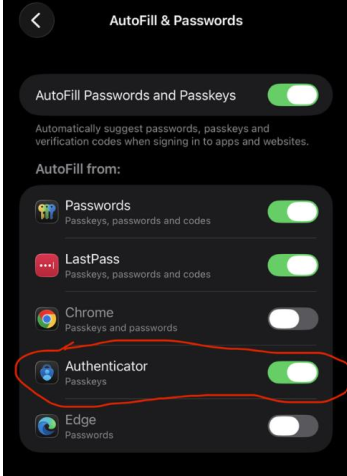

(Go to step – 3) ...
For Android Mobile Device Users:
Note: the navigation may vary according to the mobile device
Samsung:
- Go to Settings > Security and privacy > More security settings > Password, passkeys, and autofill > Select preferred service as "Microsoft Authenticator"
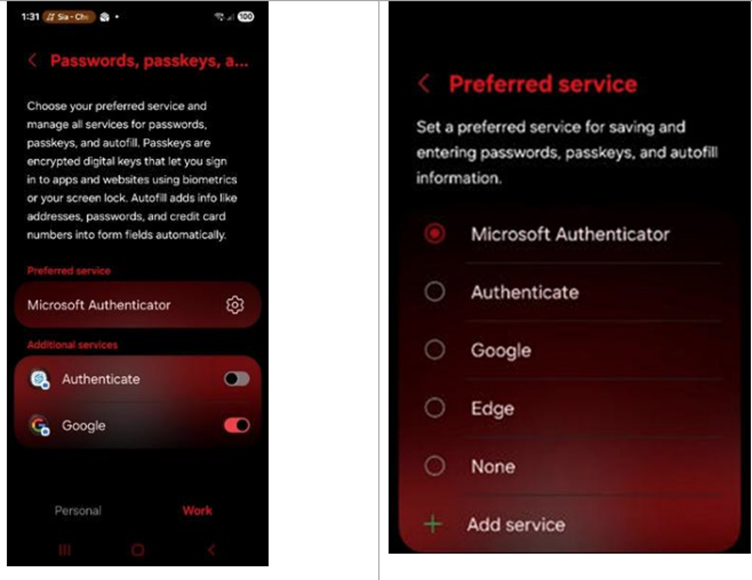

Pixel:
- Go to Settings > Passwords, Passkeys and accounts > Select "Work" profile > Additional Services (Microsoft Authenticator) = Turn ON
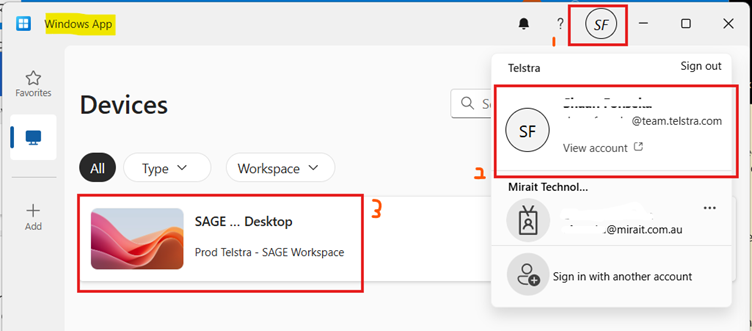
Step 3 – Sign in to Telstra SAGE Virtual Desktop (AVD)
- Open Windows App and sign in to your Telstra account
Step 4 – Create a Passkey
- Once the remote desktop started, Open Edge browser within the AVD and navigate to: aka.ms/mfasetup
- Tap Add sign-in method and select Passkey.
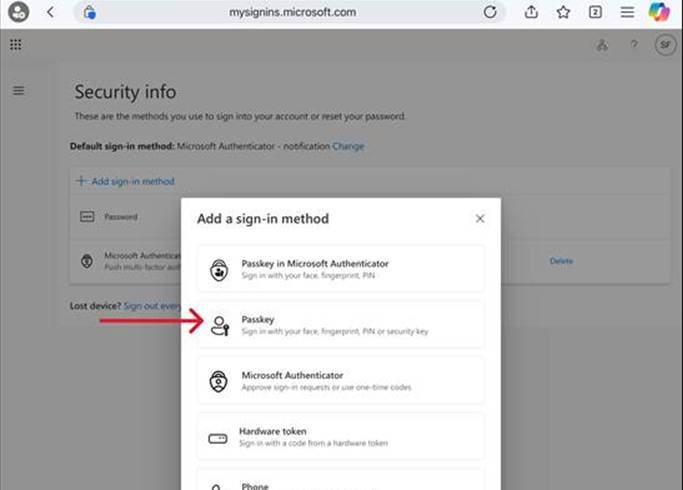

- Tap Next.
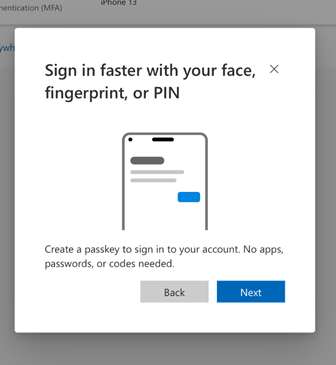

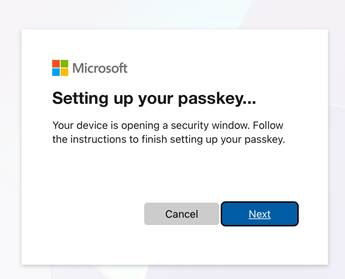

- Click Change.
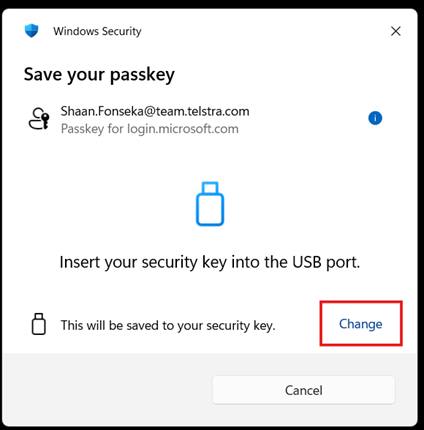

- Choose iPhone, iPad, or Android device and continue.
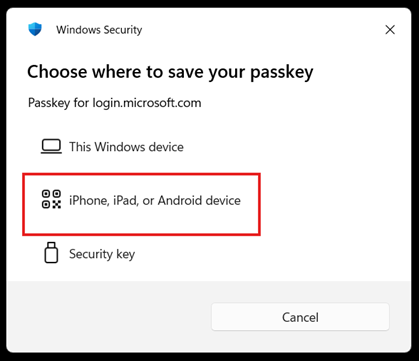

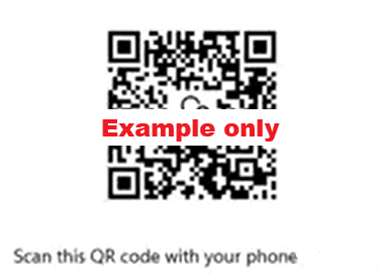
- A QR code will be displayed on the laptop screen.
Step 5 – (On your mobile device) – Save Passkey in Authenticator
- Open the Microsoft Authenticator app on your phone.
- This must be the same device used in Step 3 to set up Microsoft Authenticator for your Telstra account.
Tap blue QR code icon.
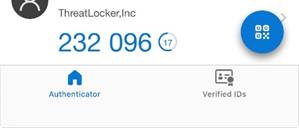
- This must be the same device used in Step 3 to set up Microsoft Authenticator for your Telstra account.
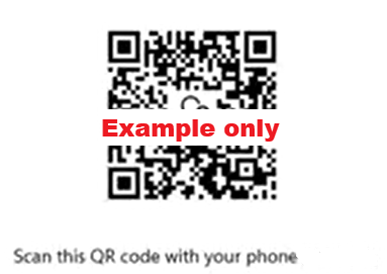
- Scan the QR code displayed on the iPad.

- Tap Continue.
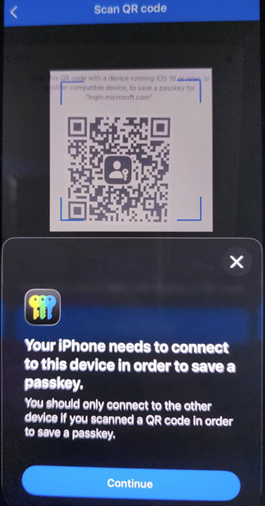

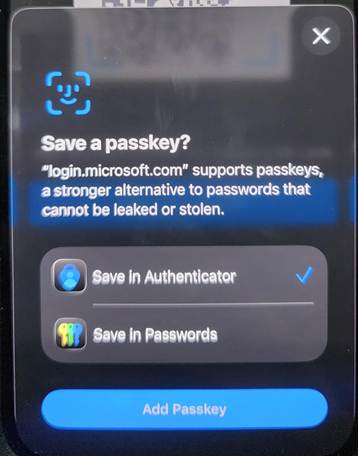
- Ensure Save in Authenticator is selected.
- Tap Add Passkey.

- Return to the laptop and continue through the remaining prompts.
- Enter a name for the Passkey and tap Next.
- Tap Done to complete the setup.
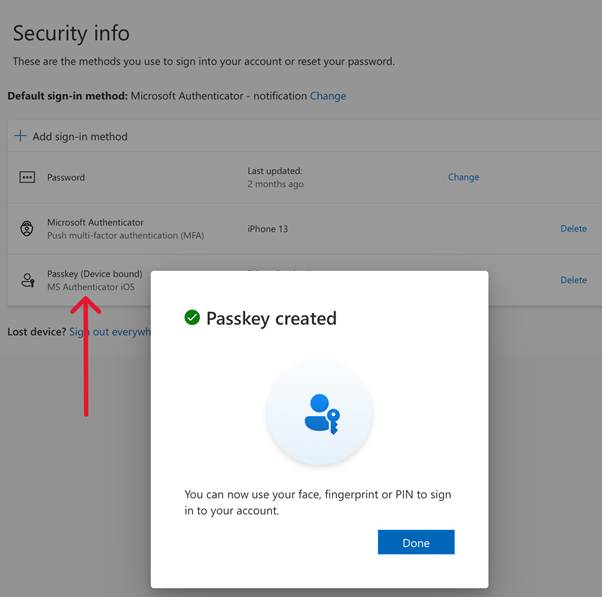
Once completed, the Passkey will appear in your Telstra account’s My Signings page under the Security Info page.

Internet Access within the AVD
Once Telstra enforces Passkey as the only MFA method, you will need to authorise internet access within the AVD by enrolling in the Netskope Client. A separate window will appear, as shown in the steps below.
If you accidentally close this window, you can reopen it by right-clicking the Netskope icon in the bottom-right corner of the desktop (near the date and time), then selecting “Re-authenticate Private Access”.

Authenticate the Netskope Client Using Your Passkey
The Netskope Client is authenticated using the passkey you created in the previous steps. The passkey is stored in the authenticator app on your mobile device.
- A pop-up titled “Verify your identity” will appear in Netskope.
- Click “Face, fingerprint, PIN or security key”.
- When prompted to “Choose a passkey”, select “iPhone, iPad or Android device”.
- A QR code will appear on the screen.
- Open the authenticator app on your mobile device and scan the QR code.
- Tap “Continue” in the pop-up message on your mobile device.
- Tap “Use Passkey”.
- Verify your identity using your device’s security method, such as Face ID, fingerprint or PIN.
Once authentication is complete, Netskope will display “Enrolled Successfully”.

