


Resco App Installation Guide:
Installing the Resco Mobile CRM App on your mobile device:
This guide covers the steps to install the Resco Mobile CRM app on your Apple iPhone, iPad, or Android phone or tablet.
BEFORE YOU START
You’ll need your assigned CRM account and password.
You might also need your device PIN and/or app store password.
STEP BY STEP
1. Open the App Store (Apple) or Play Store (Android)
1.1. Search for “resco mobile crm”
1.2. Tap or click Get

1.3. Confirm the Apple or Android account then tap or click Install

1.4. Open from the store or the device screen


2. First time setup
2.1. Enable notifications

2.2. Step through or Skip the tour

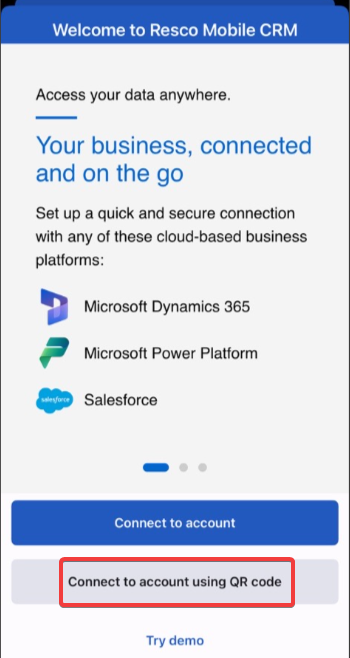
2.3. Click on Connect to Account using QR code & scan the QR code shown below
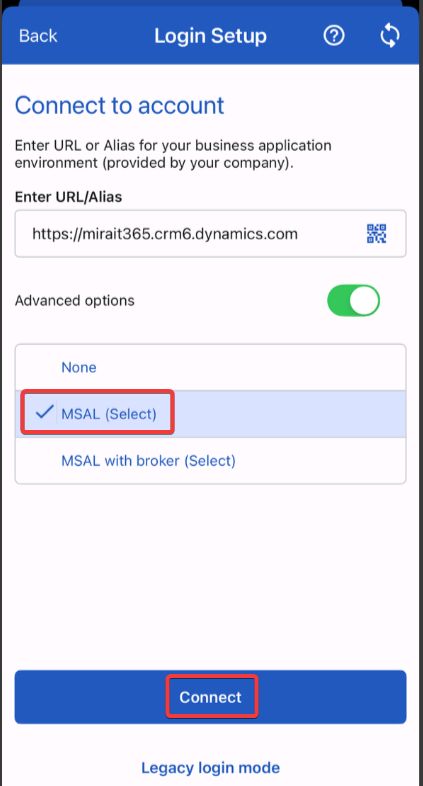
(Alternatively, you can choose Connect to Account & enter https://mirait365.crm6.dynamics.com/ & Click Connect)

2.4. On the login setup screen, make sure Advanced options is turned on MSAL (Select) is selected & then click Connect
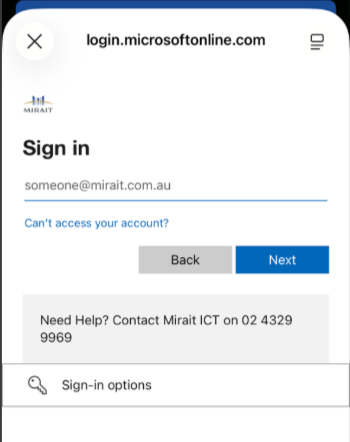
2.5. You will be prompted to sign in to microsoftonline.com
Enter your username([email protected]) & password provided by MTA IT team & click Continue
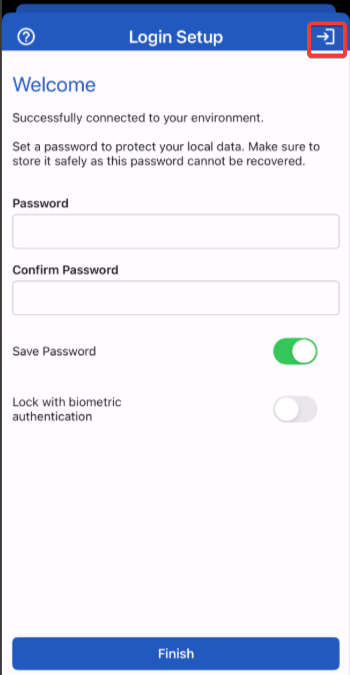
2.6. On the Welcome screen, enter the same password provided & Confirm Password
Turn on save password toggle button & click on Arrow icon on the top right
2.7. Enable location services
Allow while Using App

2.9. After sign-in, you MUST sync again to ensure all appropriate data has been downloaded


